

🧪 This feature is currently in BETA and available to all users.
What is this feature?
The .docx Export feature allows you to create downloadable Microsoft Word-compatible documents directly from your Playlab conversations and generated content. Whether you’ve created lesson plans, educational resources, student assignments, or research materials, you can now download them as .docx files that work seamlessly with Microsoft Word and Google Docs. Think of it like having a “Save As” button that converts your Playlab content into a professional, editable document format. No more copying and pasting or losing formatting. Just click, download, and you’re ready to edit, share, or print your content using any word processor.What is the Rationale for this feature?
This makes it easier for users to work with content offline, share documents with colleagues, or integrate AI-generated content into existing workflows that rely on traditional document formats. Manually copying content from Playlab often results in formatting issues, missing elements, and time-consuming reformatting work. The .docx Export feature bridges this gap by providing a one-click solution to transform Playlab content into industry-standard document files. This enables seamless integration with existing document workflows, offline editing capabilities, and easy sharing with anyone, regardless of whether they have access to Playlab.How to Export Content to .docx
You can export content from either the builder or published app view in Playlab
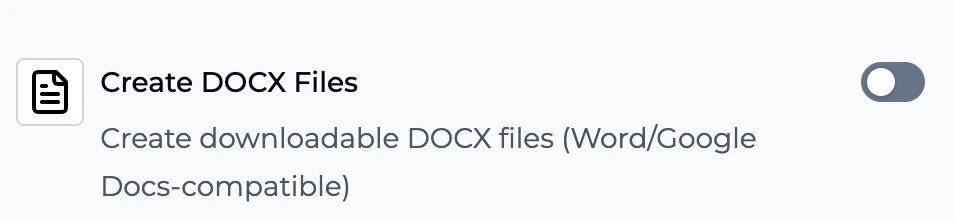
Generate Your Content
Create the content you want to export using your Playlab app (lesson plans, documents, etc.).
Request Export
Ask your app to export the content. For example: “Export this to .docx” or “Create a downloadable Word document.”ås
Download the File
Click the Download button when your document is ready. The file will be saved to your device with an automatically generated filename.
Best Practices
When to Use .docx Export
When to Use .docx Export
.docx export is ideal for:
- Offline work: Download content to edit without an internet connection
- Professional formatting: Create polished documents for formal distribution
- Collaboration: Share with colleagues who use Microsoft Word or Google Docs
- Archiving: Keep permanent copies of generated content
- Printing: Prepare documents for physical distribution
- Integration: Incorporate AI-generated content into existing document workflows
Optimize Your Content Before Export
Optimize Your Content Before Export
For best results:
- Review the content in Playlab before exporting to ensure it meets your needs
- Use clear headings and structure that will translate well to document format
- Verify that any tables, lists, or formatting appear as desired
- Consider asking the AI to format the content specifically for document export
- Include all necessary sections before exporting rather than adding them later
Working with Downloaded Files
Working with Downloaded Files
After downloading:
- Files are saved to your default downloads folder
- Open with Microsoft Word, Google Docs, LibreOffice, or other word processors
- The .docx format preserves formatting including headings, lists, and tables
- You can edit, share, and repurpose the content as needed
- Files can be uploaded to cloud storage services for backup and sharing
File Naming and Organization
File Naming and Organization
Keep your exports organized:
- Playlab automatically generates descriptive filenames based on content
- Rename files after download if needed for your organizational system
- Create dedicated folders for different types of exported content
- Consider adding dates to filenames for version tracking
- Use consistent naming conventions across your exported documents
Compatibility Considerations
Compatibility Considerations
The .docx format is widely compatible:
- Microsoft Word: Full compatibility with all versions from 2007 onwards
- Google Docs: Upload and edit seamlessly in Google Drive
- LibreOffice/OpenOffice: Free alternatives that support .docx format
- Apple Pages: Can open and edit .docx files on Mac and iOS
- Mobile apps: Most mobile word processing apps support .docx files
Frequently Asked Questions
What types of content can I export to .docx?
What types of content can I export to .docx?
You can export virtually any text-based content generated in Playlab, including:
- Lesson plans and educational resources
- Essays and written assignments
- Research papers and reports
- Meeting notes and summaries
- Guides and documentation
- Templates and forms
- Quizzes and worksheets (text-based)
How is .docx export different from Google Drive export?
How is .docx export different from Google Drive export?
Both features serve different purposes:.docx Export:
- Creates a downloadable file on your device
- Works offline after download
- No cloud service connection required
- One-time download, not synced
- Best for offline work and traditional file management
- Saves directly to your Google Drive cloud storage
- Enables real-time collaboration
- Requires Google account connection
- Files stay synced in the cloud
- Best for online collaboration and cloud-based workflows
Can I export the same content to both .docx and Google Drive?
Can I export the same content to both .docx and Google Drive?
Yes! You can export the same content using both methods if you want both a local copy and a cloud-based version. Simply request each export type separately:
- “Export this to .docx” (creates downloadable file)
- “Export this to Google Drive as a Google Doc” (saves to cloud)
Will my formatting be preserved in the .docx file?
Will my formatting be preserved in the .docx file?
Yes, most formatting is preserved including:
- Headings and subheadings
- Bullet points and numbered lists
- Bold, italic, and underlined text
- Tables and basic layouts
- Paragraph spacing
How large are the exported .docx files?
How large are the exported .docx files?
File sizes vary based on content length and complexity:
- Short documents (1-2 pages): 10-50 KB
- Medium documents (5-10 pages): 50-200 KB
- Long documents (20+ pages): 200-500 KB
- Documents with tables/complex formatting: May be slightly larger
Can I export multiple items at once?
Can I export multiple items at once?
Currently, exports are done one item at a time. To export multiple pieces of content, you’ll need to request each export separately. However, you can quickly export several items in succession by using the export command multiple times.
What if the download doesn't work?
What if the download doesn't work?
If you encounter download issues:
- Check your browser’s download settings and permissions
- Ensure pop-ups are not blocked for Playlab
- Try a different browser if the issue persists
- Check your available disk space
- Contact support at support@playlab.ai if problems continue
Can I edit the .docx file after downloading?
Can I edit the .docx file after downloading?
Absolutely! That’s the main purpose of the .docx format. Once downloaded, you have a fully editable document that you can modify using any word processor. All changes you make are saved to your local file and are independent of the original Playlab content.
Is there a limit to how many files I can export?
Is there a limit to how many files I can export?
There are no specific limits on the number of .docx files you can export. You can export as many documents as you need, though exports are processed one at a time to ensure quality and proper formatting.
We Want Your Feedback!
Thank you for trying out the .docx export feature. We’re continuously working to improve document export capabilities and would love to hear about your experience. Contact us at support@playlab.aiLast updated: November 3, 2025